A gentler
break cue.

CuckooTimer
A gentle menu bar cuckoo clock · Productivity · Utilities

$3.99 USD, one-time. No subscription, no in-app purchases.
Requires macOS 26 or later. Universal for Apple Silicon and Intel Macs. Updates arrive through the App Store.
- No sign-in
- No in-app purchases
- Settings stay on your Mac
See it in action
Time for a
little pause.
A small bird appears at each reminder. Press the button to hear the chime and watch the three-second cue, rendered live in your browser from the same model the app uses.
- The doors open and the blue wooden cuckoo calls once.
- A short chime plays, then the clock settles back down.
- On your Mac, the window fades away on its own in Auto mode.
$3.99 USD, one-time. No subscription, no sign-in.
Plays a short chime. Sound on for the full effect.
How it works
Four small steps to a better rhythm.
Set it once, then let the cuckoo keep watch. Every reminder is a small, repeatable cue to make room for your next break.
- 01
Choose your rhythm
Pick 15, 30, or 60 minutes from the menu bar. Change it whenever your day changes.
- 02
Stay in flow
CuckooTimer keeps time quietly in the menu bar. No dock icon, nothing to babysit.
- 03
The cuckoo calls
A short chime and a three-second animation mark the moment. Sound only, if you prefer.
- 04
Take a moment
Stretch, look away from the screen, breathe. Then come back to the work refreshed.
Made to fit your day
Every control, one click away.
Interval, sound, visibility, and working hours all live in the menu bar. Set them once and forget the app is there until the cuckoo calls.
Menu bar controls
Choose your rhythm.
No settings window to hunt for. Open the menu bar icon and every option is right there, including a Test Cuckoo item that plays the cue on demand.
- Reminders every 15 minutes, 30 minutes, or hour.
- Enable or pause the timer without quitting.
- Toggle the cuckoo sound on or off in one click.
Visibility
Decide when it appears.
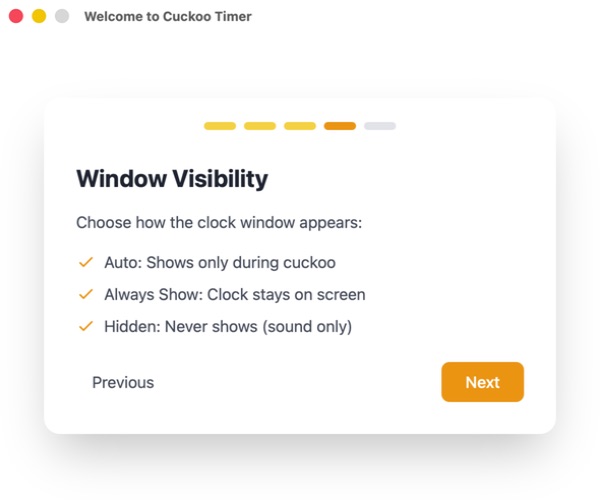
Some days you want the clock in view. Other days you want nothing but the chime. Three modes cover both, and you can switch at any time.
- Auto shows the clock only during the cuckoo, then hides it.
- Always Show keeps the clock on screen as a desk companion.
- Hidden never shows the window and plays the sound only.
Working hours
Breaks on your schedule.
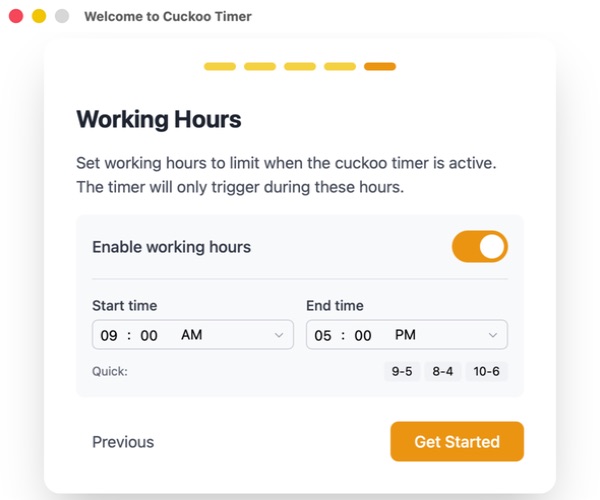
Reminders follow your workday, not the calendar clock. Turn working hours on and the cuckoo waits until you are back at your desk.
- Choose active hours and the clock stays quiet outside them.
- Quick presets for 9 to 5, 8 to 4, and 10 to 6.
- Overnight ranges work too, for late shifts.
A real 3D clock
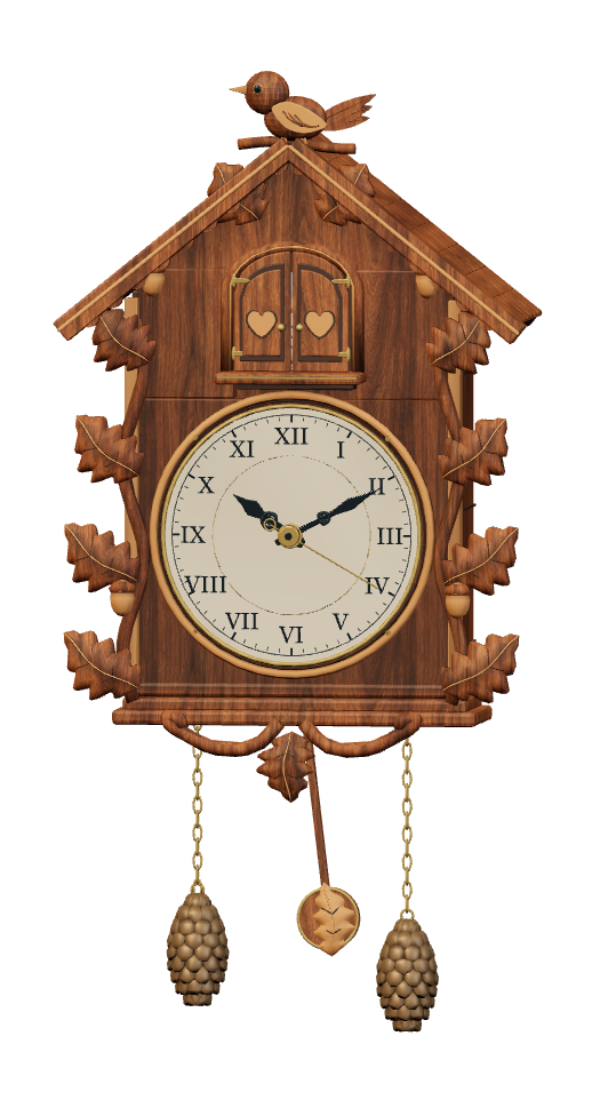
Carved walnut, live hands, a swinging pendulum, and a blue wooden bird, modeled in 3D and rendered on your desktop.
Short cuckoo chime
One gentle call per reminder. Turn the sound off from the menu whenever you need quiet.
Test Cuckoo any time
Preview the cue from the menu to check your volume and window mode. No waiting for the next interval.
Settings stay on your Mac
Your interval, sound, and hours are stored locally. No account or sync required.
Universal for every Mac
One build for Apple Silicon and Intel. Requires macOS 26 or later.
Runs in the App Sandbox
CuckooTimer is sandboxed and updates through the App Store like any other Mac app. Nothing else to install.
Get the app
Get CuckooTimer on the
Mac App Store.
Gentle cuckoo reminders that make regular breaks feel natural. $3.99 USD, one time. No subscription, no in-app purchases, no sign-in.
CuckooTimer
A gentle menu bar cuckoo clock
Productivity · Utilities · macOS
$3.99
USD, one-time purchase
- One-time purchase, no subscription
- Installed and updated through the App Store
- One purchase for every Mac on your Apple Account
- Purchases and refunds handled by Apple
- Runs in the macOS App Sandbox
- Universal app, macOS 26 or later
Opens the listing in the App Store app on your Mac. Sign in with your Apple Account to buy, then install on your other Macs from Purchases.
Questions? Read the FAQ or contact us.
FAQ
Good questions.
Everything you need to know before the first cuckoo.
On the Mac App Store. Open the listing, buy it once with your Apple Account, and it installs like any other Mac app. No account to create, no license key to keep.
CuckooTimer requires macOS 26 or later and ships as a universal app for both Apple Silicon and Intel Macs.
Yes. Mac App Store purchases follow your Apple Account under Apple's terms, so you can install CuckooTimer from Purchases on your other Macs at no extra cost.
Updates arrive through the App Store app on macOS, the same way as your other apps. Turn on automatic updates in App Store settings and you never have to think about it.
Click the CuckooTimer icon in your menu bar and pick every 15 minutes, every 30 minutes, or every hour. Changing the interval rebases the schedule, so the next reminder lands on the new boundary.
Yes. Cuckoo Sound is a single toggle in the menu. For the window, choose Auto to show the clock only during the cuckoo, Always Show to keep it on screen, or Hidden for sound only.
Purchases and refunds are handled by Apple. You can request a refund for an App Store purchase through Apple's Report a Problem page.
Yes. Email support is available for technical questions. Include your macOS version, the app version from About Cuckoo Timer, and a short description of what happened. Response times can vary.
Still have questions?
Contact Support